


This guide explains how to install NZBGet on Android, install the NZBGet daemon, and connect the app to your SunnyUsenet account.
Install NZBGet and Add the Daemon
NZBGet on Android uses a separate daemon. The app interface alone is not enough; the daemon must be installed before NZBGet can run.
- From your Android device, visit the official NZBGet website.
- Get the Android APK.
- Open the APK from your device’s browser or storage manager.
- If Android asks for permission to install apps from this source, allow it.
- Finish the installation and open NZBGet.
- On the NZBGet home screen, tap Install Daemon.
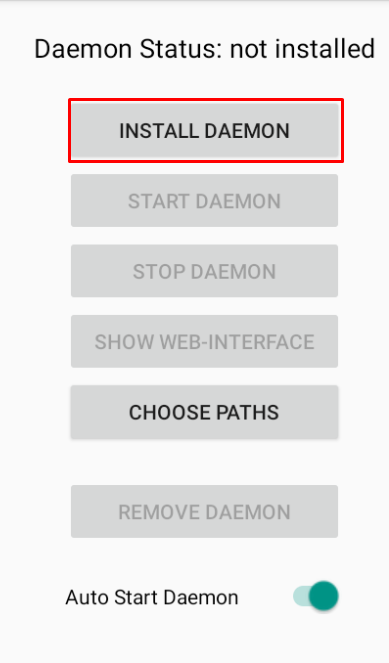
- Select Latest Stable.
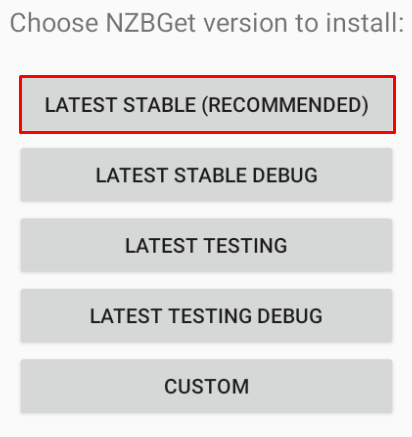
- Wait for the installation to finish.
- Confirm that NZBGet shows the message: NZBGet daemon has been successfully installed.
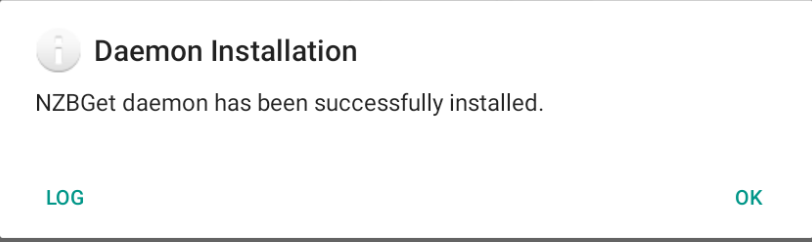
Start the NZBGet Daemon
After the daemon is installed:
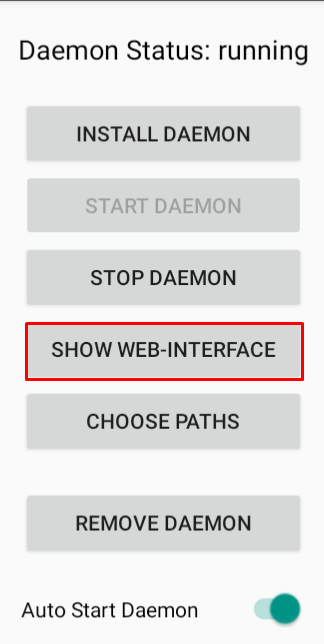
- In the NZBGet app, tap Start daemon.
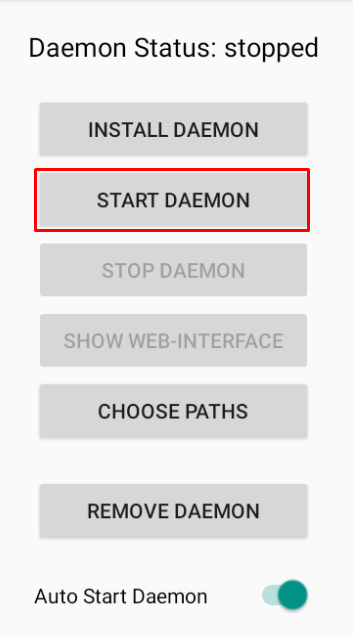
- Wait for the app to confirm that the daemon is running.

- Tap Show web-interface.
You can also open a browser on the same Android device and go to:
http://localhost:6789
After the Web interface opens, the Android app can be closed. NZBGet will continue running in the background.
Open News-Server Settings
In the NZBGet Web interface:
- Open Settings.
- Select News-Servers.
This is where you enter your SunnyUsenet server information.
Enter SunnyUsenet Server Details
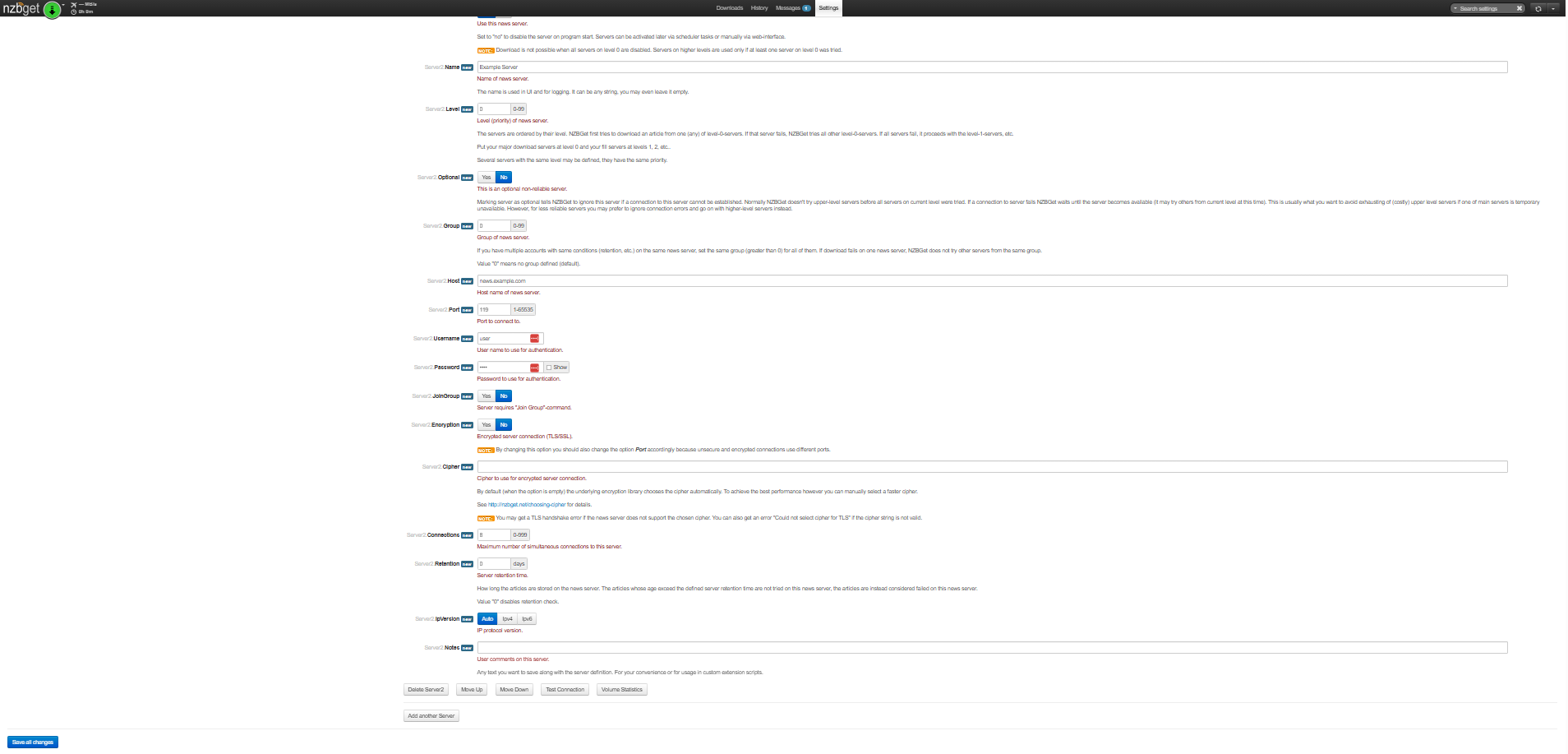
Use the following settings:
- Host: news.sunnyusenet.com
- Port: 563 for SSL or 119 for non-SSL
- Username: Your SunnyUsenet username
- Password: Your SunnyUsenet password
- Connections: Enter the number supported by your SunnyUsenet plan; start with 20 if unsure
- Encryption: Enable SSL when using port 563
SSL is recommended because it encrypts your Usenet connection.
Save and Restart NZBGet
After entering your server details:
- Apply or save the settings in NZBGet.
- Return to the Android NZBGet app.
- Stop the daemon.
- Start the daemon again.
Restarting the daemon applies the updated server settings.
Troubleshooting
If NZBGet does not connect:
- Confirm the daemon was installed before starting NZBGet
- Make sure the daemon is running
- Check that the host is news.sunnyusenet.com
- Use port 563 with SSL enabled
- Use port 119 only if SSL is disabled
- Re-enter your SunnyUsenet username and password
- Lower the connection count if the connection is unstable

