


This guide walks through installing NZBGet on Windows and connecting it to your SunnyUsenet account. NZBGet is a lightweight newsreader that runs in your browser and handles Usenet article processing automatically.
Install NZBGet on Windows
- Visit the official NZBGet website.
- Download the latest Windows installer.
- Run the installer and follow the prompts.
- Launch NZBGet after installation completes.
When NZBGet starts, it will open its Web interface in your default browser.
Access the NZBGet Web Interface
Start NZBGet from your system like any other application:
- Open it from the Start Menu or desktop shortcut
- NZBGet will launch in the background and open its Web interface automatically
If the browser does not open, you can access it manually at:
NZBGet may also run from the system tray (near the clock in the taskbar). If it is already running, look for the NZBGet icon there and double-click it to reopen the Web interface.
Default login:
- Username: nzbget
- Password: tegbzn6789
You can change these credentials later in the settings.
Enter Your SunnyUsenet Server Details
- In the NZBGet interface, click Settings.
- Select NEWS-SERVERS from the left menu.
- Locate the default server entry and update it with your SunnyUsenet details.
Use the following values:
- Active: Yes
- Name: A simple label (e.g., "SunnyUsenet")
- Optional: No
- Group: 0 (use another number only if organizing multiple servers)
- Host: news.sunnyusenet.com
- Port: 563 (SSL) or 119 (non-SSL)
- Username: Your SunnyUsenet username
- Password: Your SunnyUsenet password
- JoinGroup: No
- Encryption: Yes for SSL (recommended)
- Cypher: Leave blank
- Connections: Start with 8 (adjust based on your plan)
- Article Retention: Leave blank to use full article retention, or set a limit if you want to filter older articles
- IpVersion: Auto
- Notes: Optional
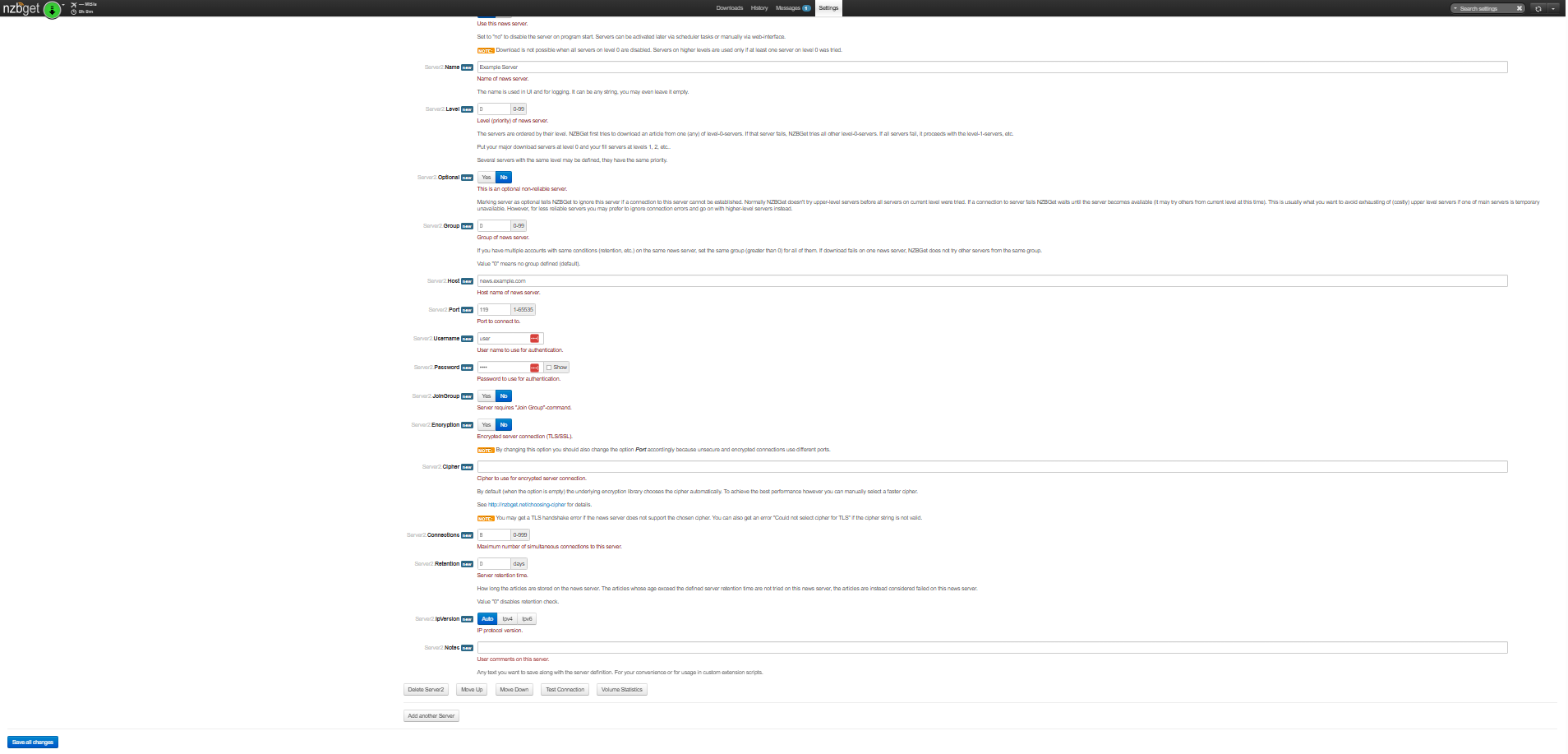
SSL connections (port 563) are recommended to keep your Usenet activity private.
Test and Confirm the Connection
After entering your server details:
- Scroll to the bottom and click Test Connection.
- Review the result message:
- If successful, NZBGet will display "Connection Successful"
- If it fails, a dialog box will appear with "Connection test failed" — click Close to dismiss it and review your settings
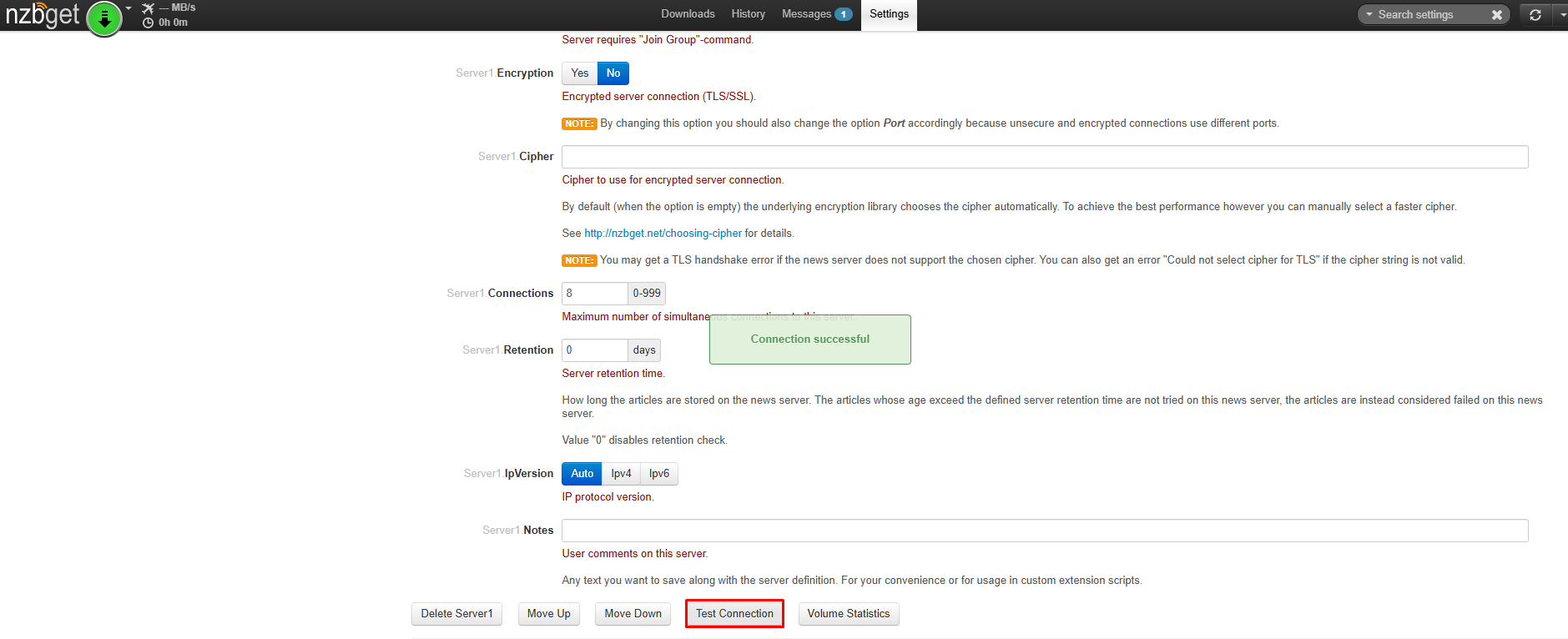
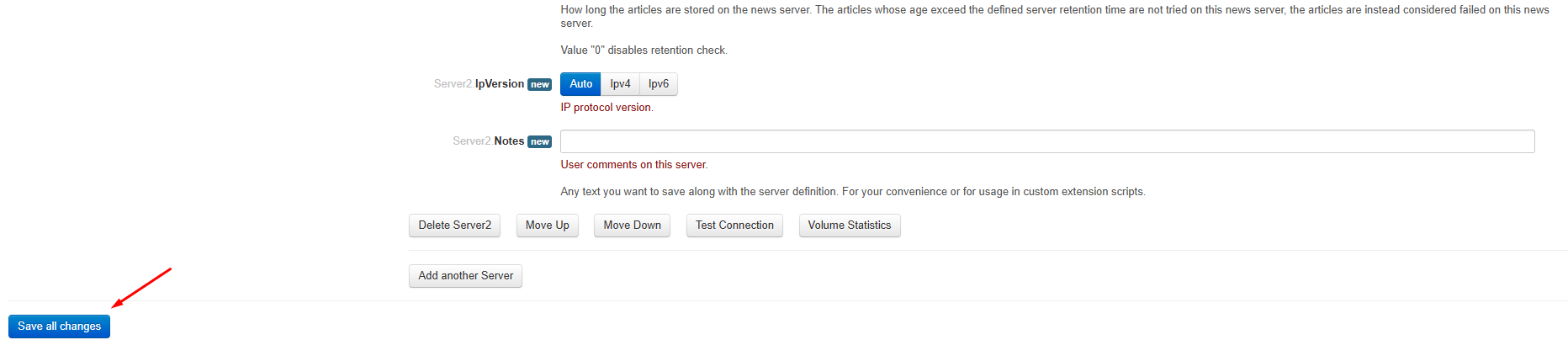
- Once the connection succeeds, click Save Changes to apply your settings.
Adjust Performance Settings (Optional)
You can fine-tune NZBGet to improve speed and stability.
- Increase Connections gradually to match your plan limits
- Avoid maxing out connections if your speed is already stable
- Lower connection counts may perform better on higher-latency networks
If speeds are inconsistent, review your port and SSL settings or try an alternate port.
Add Usenet Search and Start Accessing Articles
NZBGet works with Usenet search tools to send NZB files directly to your newsreader.
Once connected:
- Add your preferred Usenet search service
- Send NZBs to NZBGet
- NZBGet will retrieve and process articles automatically
Common Issues
Connection errors
- Double-check login credentials
- Confirm the correct port (563 for SSL, 119 for non-SSL)
Slow speeds
- Adjust connection count
- Verify SSL settings
- Check your Internet connection stability
Web interface not loading
- Confirm NZBGet is running
- Reopen http://localhost:6789

