


This guide walks through setting up SABnzbd on macOS and connecting it to SunnyUsenet. The steps below cover installation, initial configuration, and verifying your connection.
Install SABnzbd on macOS
- Visit the official SABnzbd website.
- Get the macOS version of SABnzbd.
- Open the downloaded installer and move SABnzbd into your Applications folder.
- Launch SABnzbd from Applications.
When SABnzbd starts for the first time, it will open a setup page in your default Web browser.
Start the Setup Wizard
When SABnzbd opens in your Web browser for the first time:
- Select your preferred language.
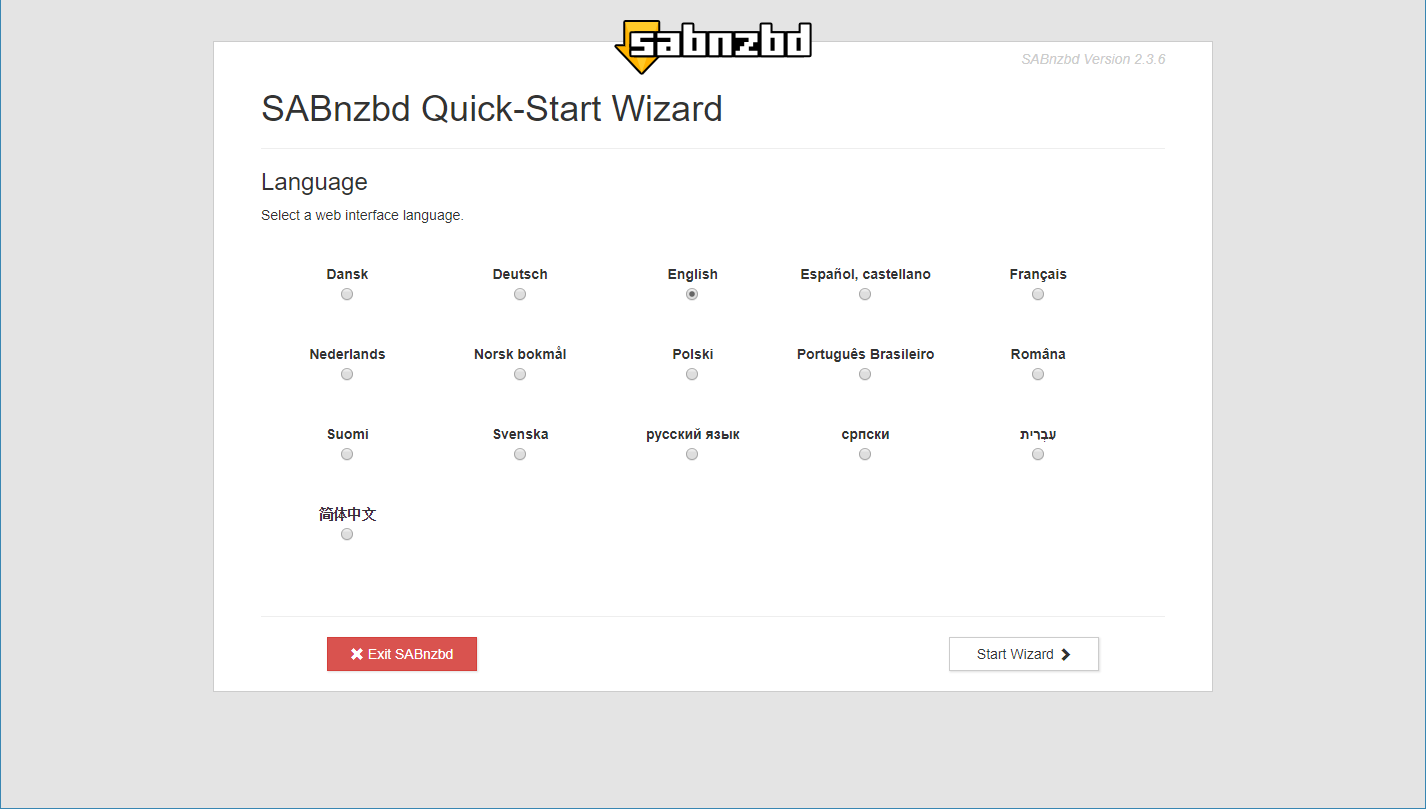
- Click Start Wizard to continue.
You will enter your SunnyUsenet server details in the following step.
Enter SunnyUsenet Server Settings
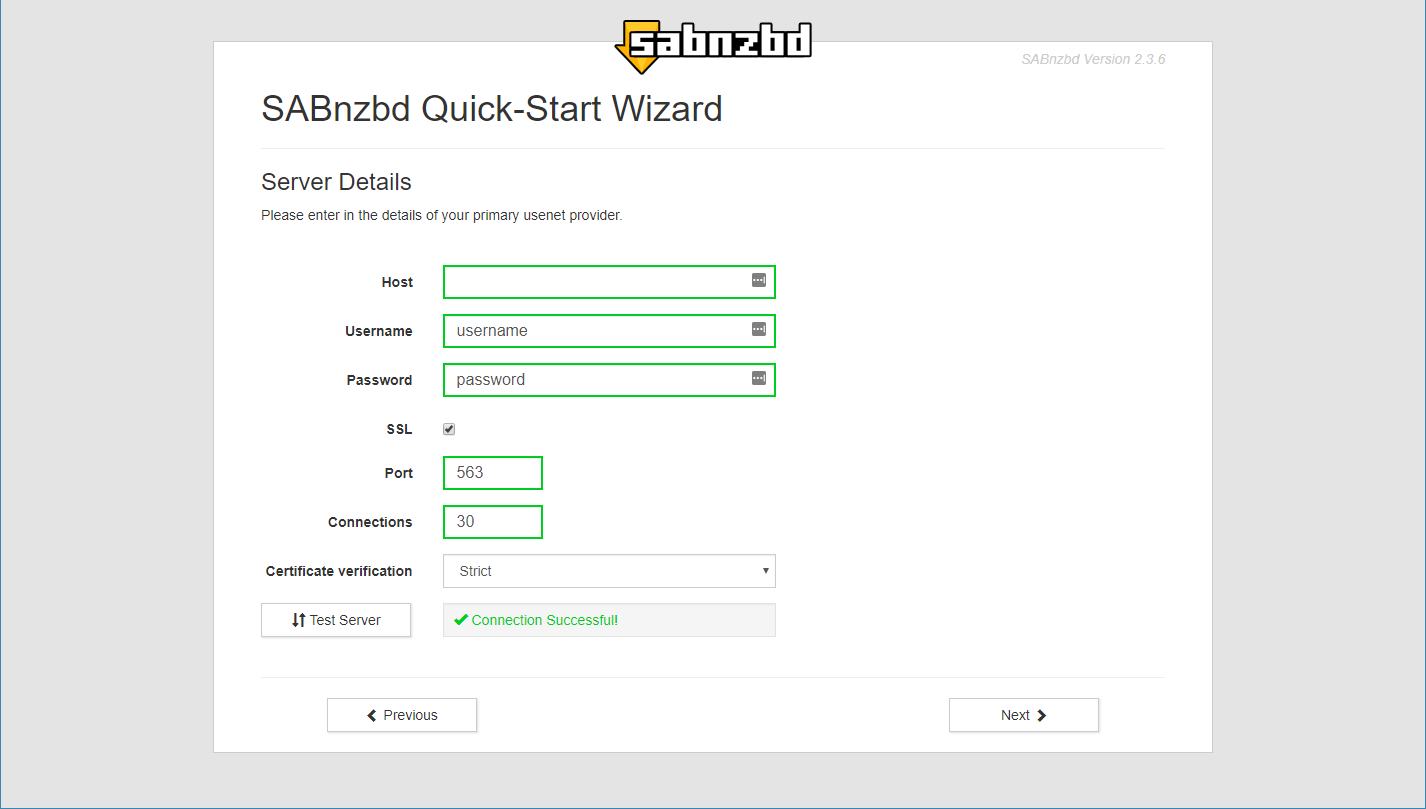
When prompted to configure your server, enter the following details from your SunnyUsenet welcome email:
- Host: The server address provided in your email
- Username: Your SunnyUsenet username
- Password: Your SunnyUsenet password
- SSL: Enable for an encrypted connection
- Port: Updates automatically based on SSL (typically 563 when enabled)
- Connections: Start with 20 if unsure, or use the number listed in your email
- Certificate Verification: Set to Strict for SSL connections (use Minimal only if needed)
Test the Server Connection
Before moving forward, confirm the connection is working:
- Click the Test Server button.
- Wait for SABnzbd to check the connection.
- Look for a success message confirming the server is reachable.
If the test fails, double-check your login details and port settings.
Finish Setup
- Continue through the remaining setup screens.
- Confirm your settings.
- Complete the wizard.
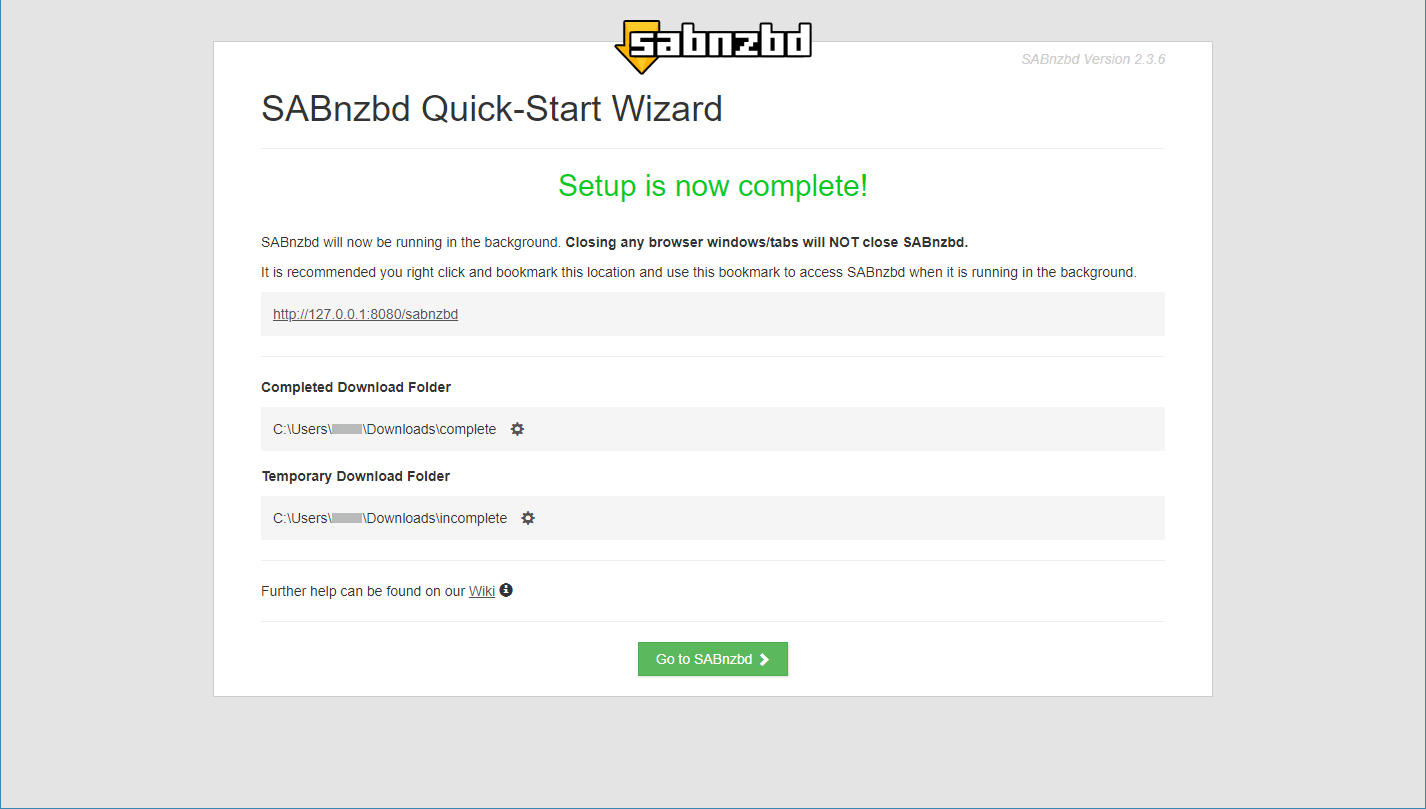
SABnzbd will open its main interface in your browser once setup is complete.
Open Settings in SABnzbd
To review or adjust your configuration later:
- Click the gear icon in the top-right corner of the SABnzbd interface to open Settings.
From here, you can update server details, adjust connection limits, or fine-tune performance.
Confirm Server Status
After setup, verify your server is active:
- Open Settings (gear icon).
- Go to the Servers section.
- Locate your SunnyUsenet server.
- Check the status indicator:
- Green/Connected means everything is working
- Any warning or error indicates a configuration issue
If needed, use the test option again to confirm connectivity.
Optional: Adjust Performance Settings
Once connected, you can refine performance:
- Increase or decrease connections based on your plan
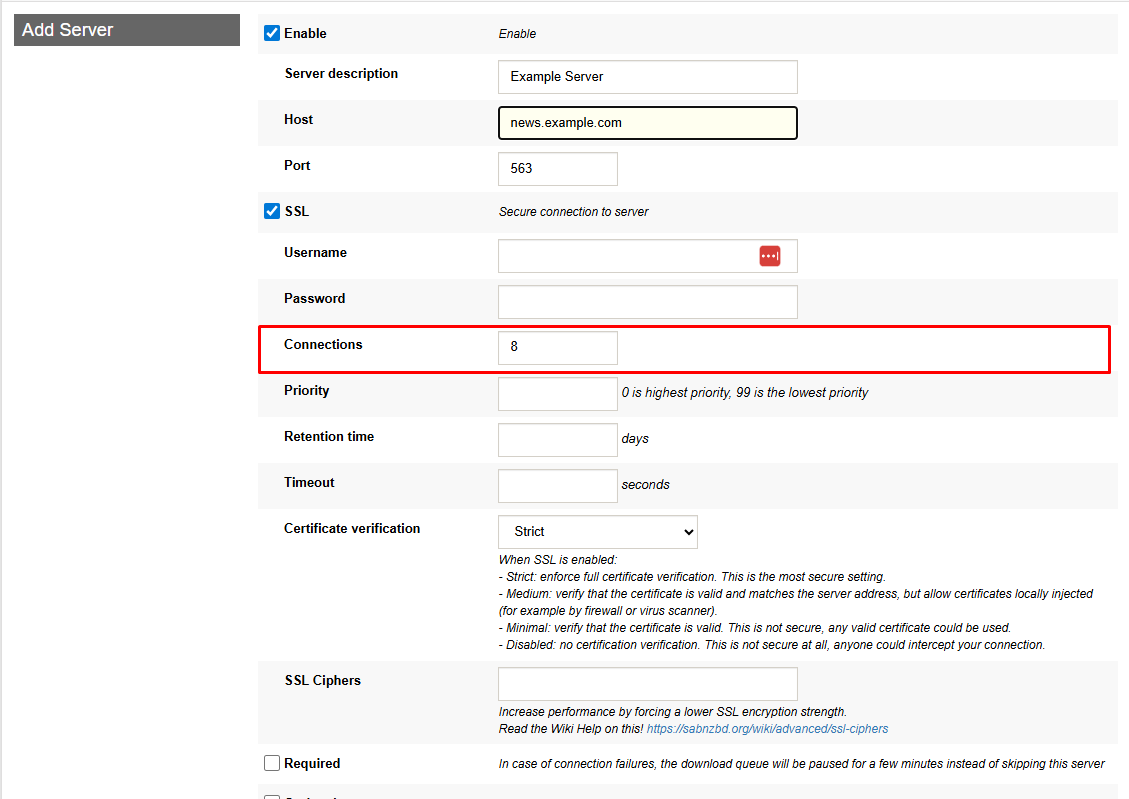
- Enable advanced options like article handling settings if needed
For additional tuning, refer to related SunnyUsenet support guides on connection performance and port configuration.
Troubleshooting Tips
- Re-enter your username and password if authentication fails
- Confirm SSL is enabled with the correct port
- Lower connection count if you see instability
- Check your Internet connection for interruptions

