


This guide walks through installing SABnzbd on Linux and connecting it to your SunnyUsenet account. Once configured, SABnzbd will handle article retrieval and processing in the background.
Install SABnzbd on Linux
Most Linux distributions provide SABnzbd through their package manager.
Debian/Ubuntu:
sudo apt update
sudo apt install sabnzbdplus
Fedora:
sudo dnf install sabnzbd
Arch Linux:
sudo pacman -S sabnzbd
After installation, start SABnzbd:
sabnzbdplus --browser 1
This will open the SABnzbd Web interface in your default browser.
Launch the Setup Wizard
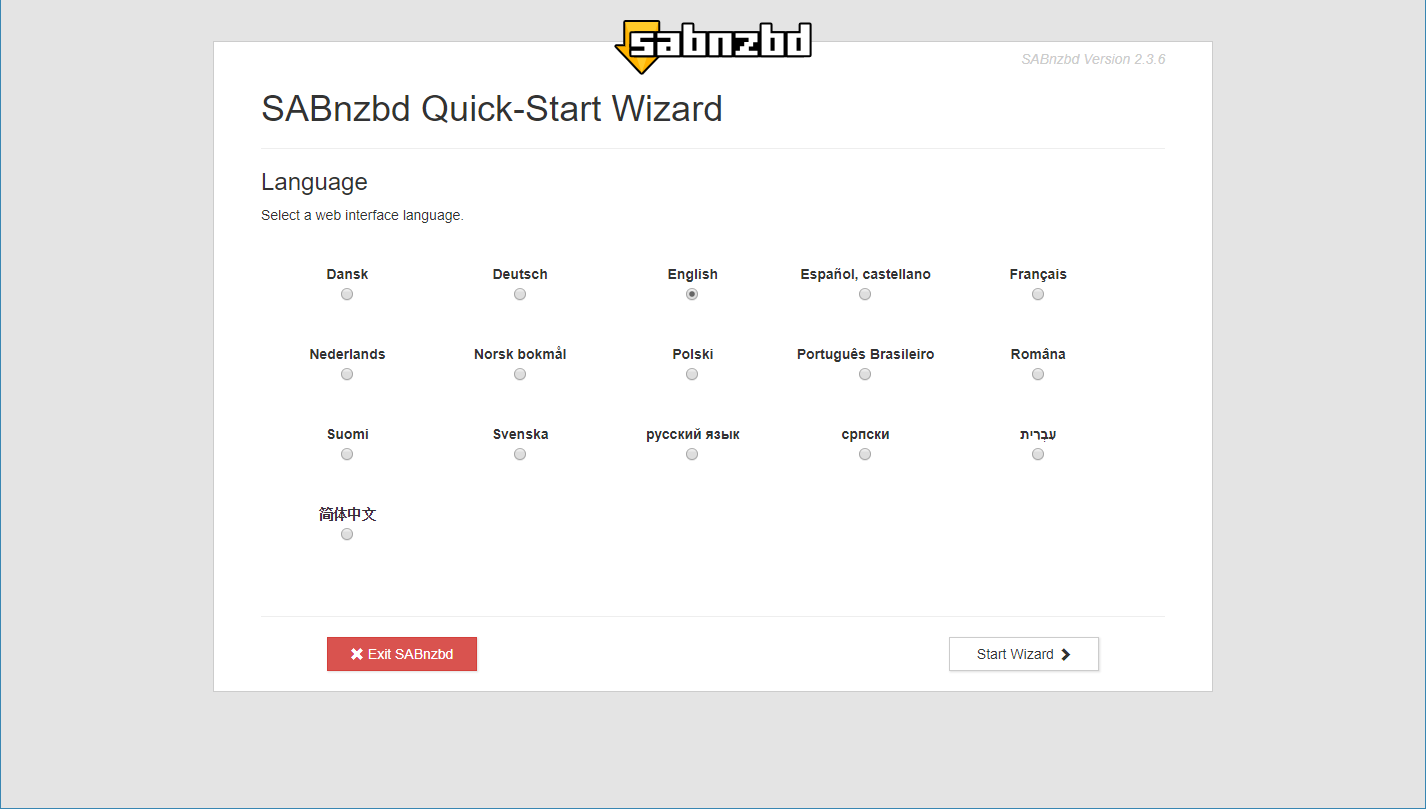
When SABnzbd runs for the first time, it displays the Start Wizard screen.
Click Start Wizard to begin the initial configuration.
Enter SunnyUsenet Server Details
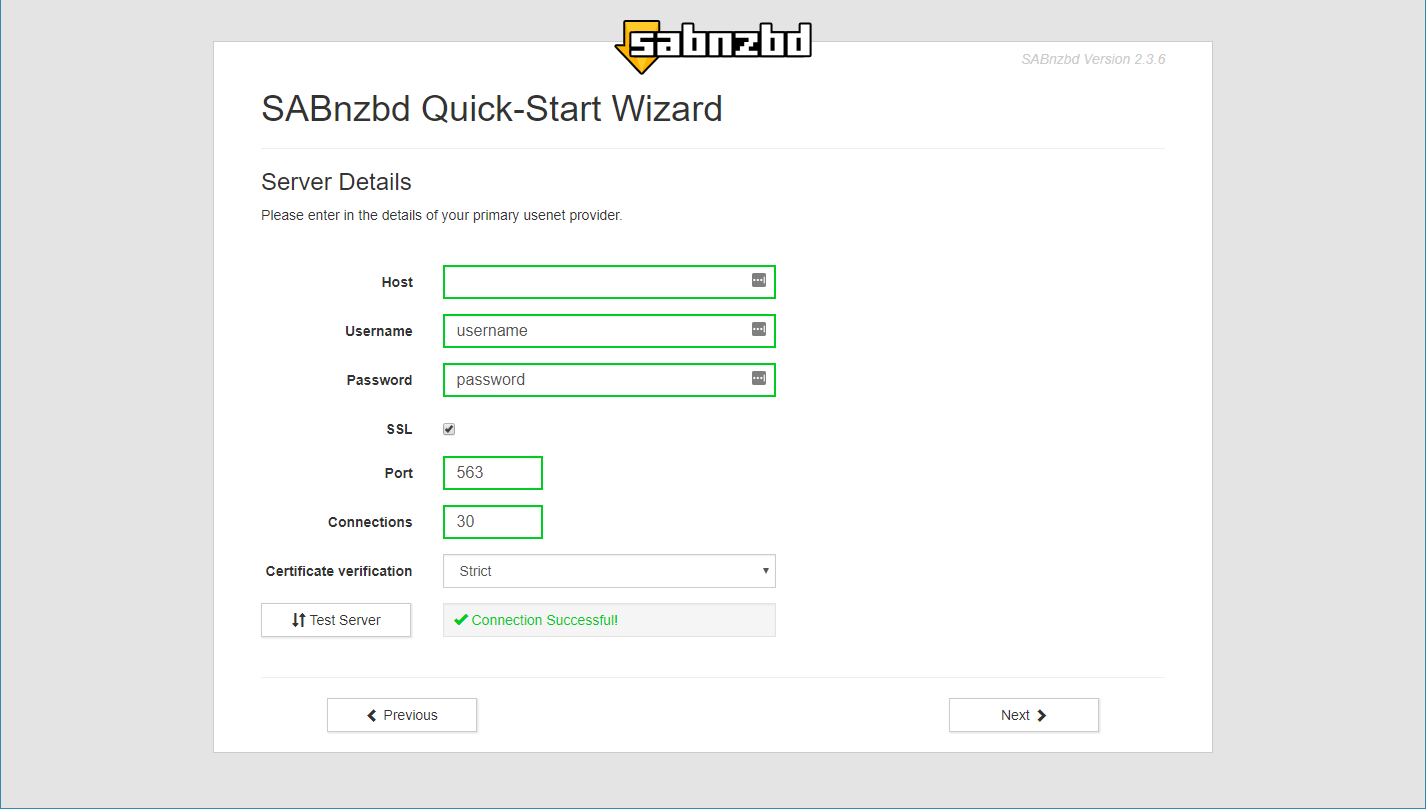
During the wizard, you will be prompted to configure a Usenet server.
Use the following details from your SunnyUsenet account:
- Server Address: news.sunnyusenet.com
- Username: Your SunnyUsenet username
- Password: Your SunnyUsenet password
- Connections: Start with 20 (adjust based on your plan)
SSL Settings
- Enable SSL for encrypted access
- Port will automatically switch to 563
- Without SSL, use port 119
Certificate Verification
- Set to Strict for standard use
- Use Minimal only if connection issues occur
Test the Server Connection
Before continuing, verify the connection:
- Click Test Server in the wizard
- Wait for the result
Status indicators:
- Success: Connection is working
- Failed/Error: Review server details, login credentials, or port settings
Fix any issues before moving forward.
Complete the Wizard
Continue through the remaining wizard steps:
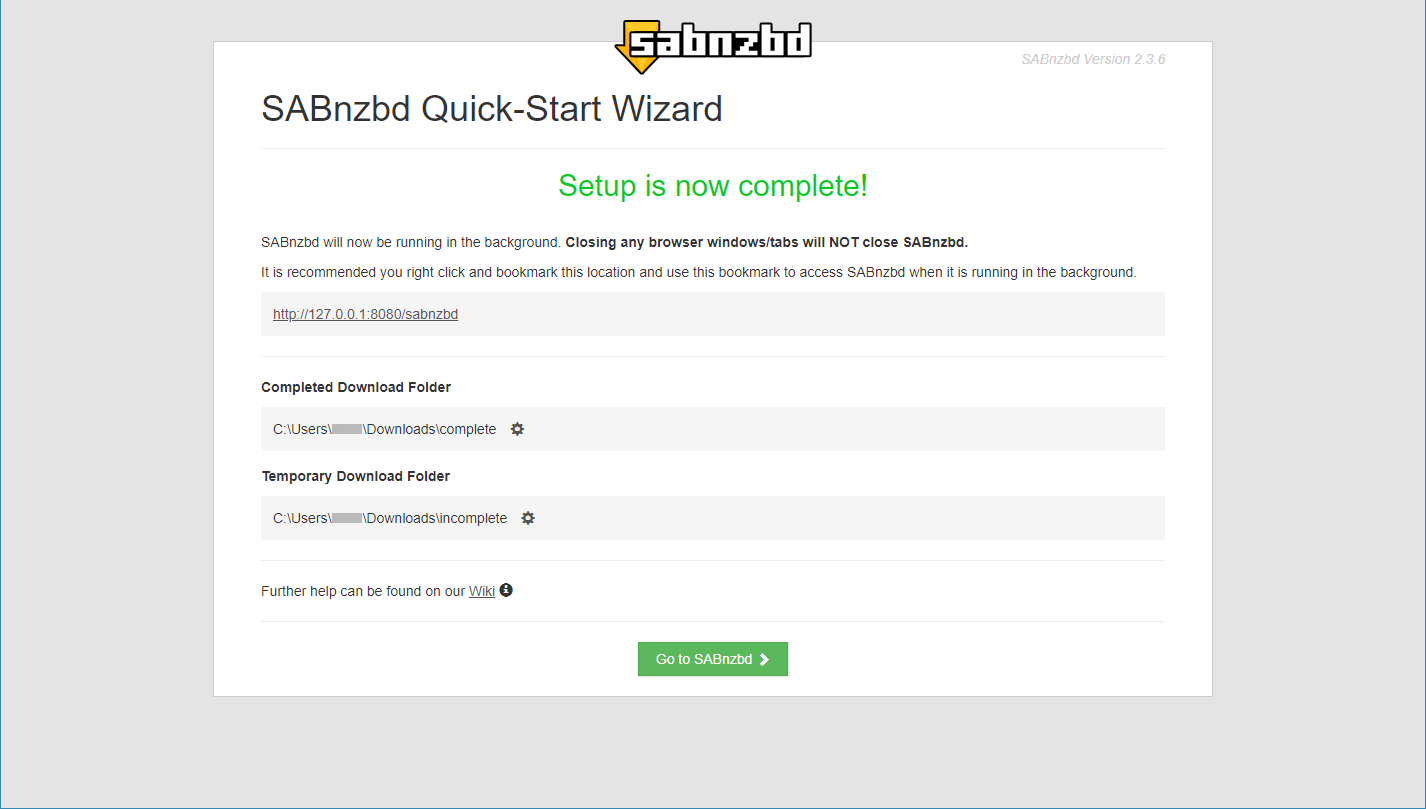
- Choose a download directory
- Set a temporary folder
- Confirm access settings for the Web interface
Finish the wizard to apply your configuration.
Access SABnzbd Settings
Once setup is complete:
- Open SABnzbd in your browser
- Click the Settings gear icon in the top-right corner
From here, you can:
- Adjust connection limits
- Modify folders
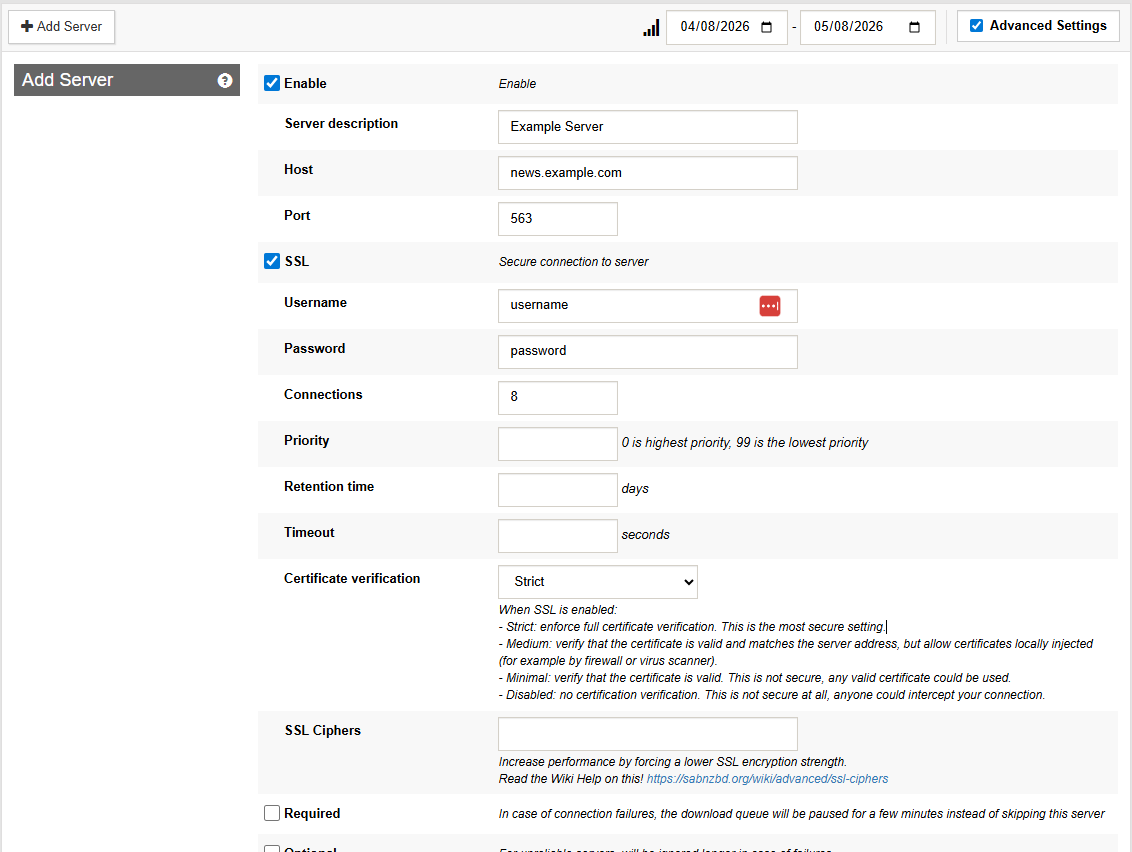
- Enable advanced options like NNTP pipelining
Optional: Improve Performance
For better performance, review:
- Connection count (avoid setting higher than your plan allows)
- SSL usage for secure access
- NNTP pipelining under advanced server settings
These adjustments can improve efficiency depending on your network conditions.
Summary
SABnzbd on Linux works well with SunnyUsenet once the server details are in place. The setup wizard handles most of the configuration, and the built-in test tool helps confirm everything is working before use.

